
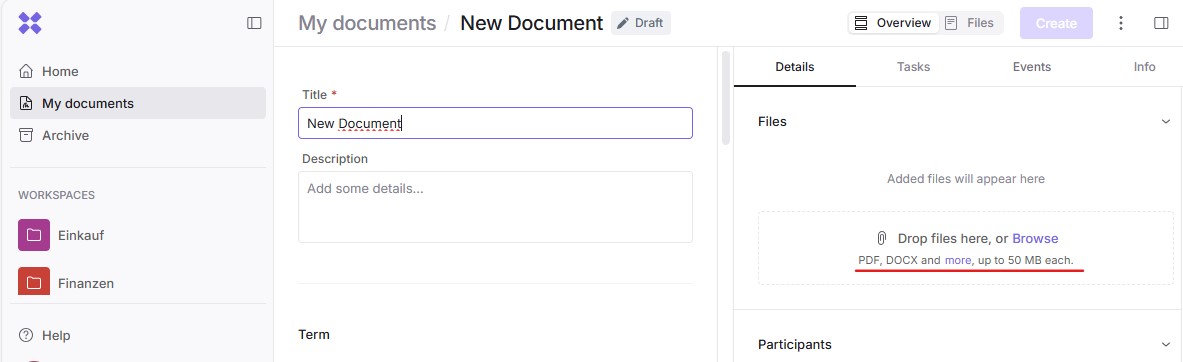
You can add new files to the document record by dragging and dropping them or by browsing and selecting any file format:
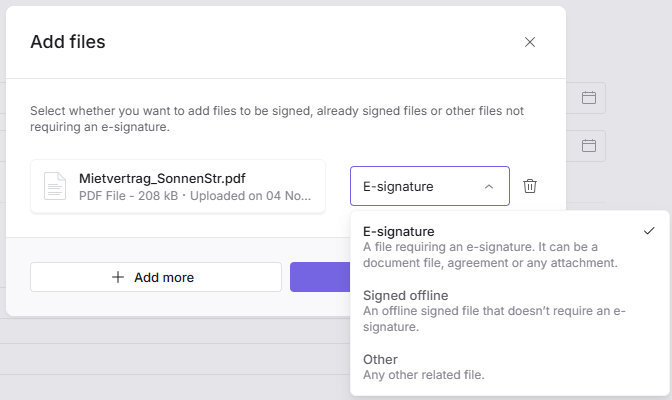
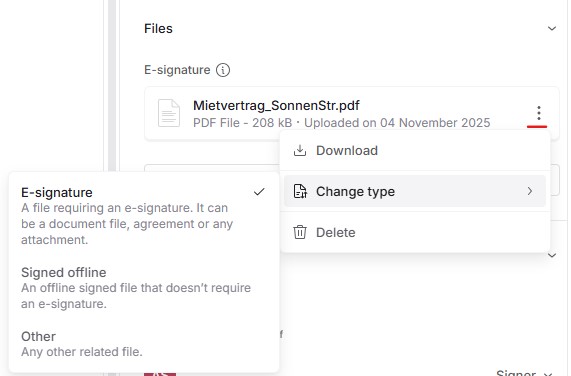
Next, you can decide whether the uploaded files should be signed using the Inhubber eSignature, have already been signed offline, or do not require a signature:
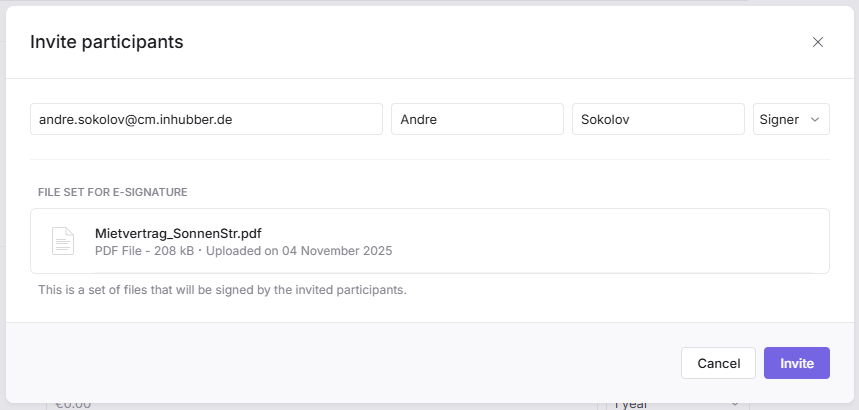
If you have selected a file for eSignature, you will be able to invite signers directly to that file (learn more about this process under Inviting people to read and sign):
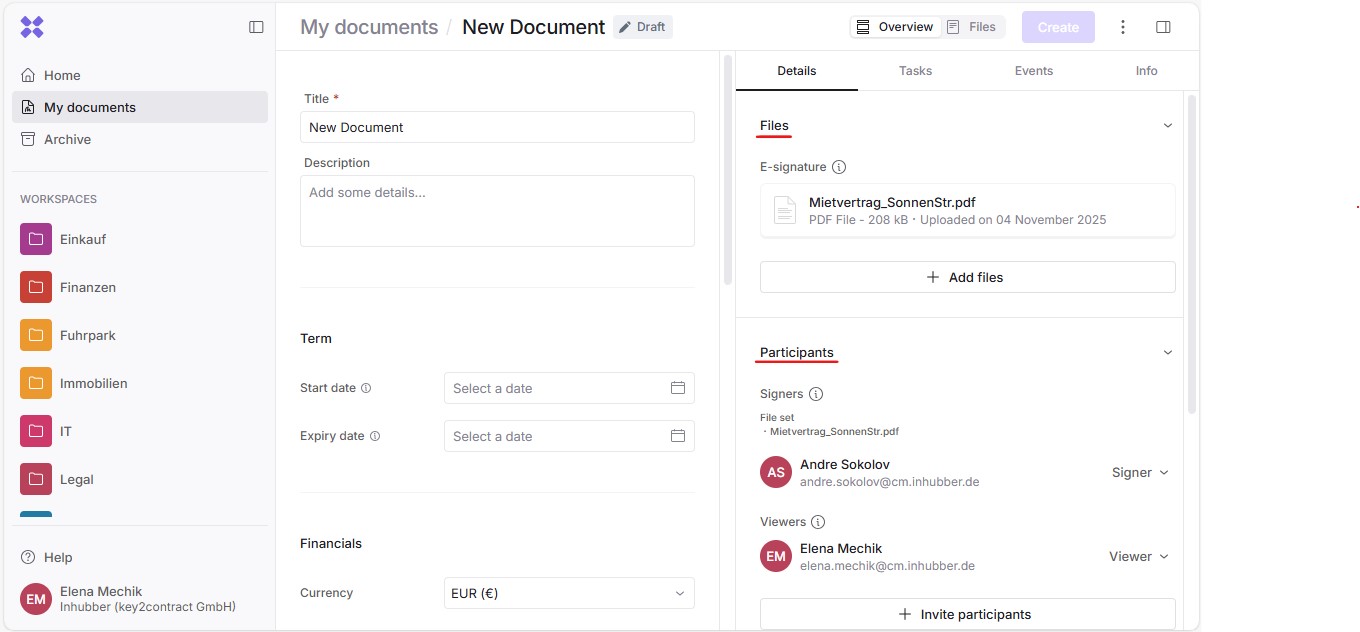
Once you’ve finished sending invitations, simply close the dialog. On the right side of the overview, you’ll now see a list of all uploaded files and invited participants:
If the document is in Draft status, you can change the file type to “Offline signed”, “eSignature”, or “Other”. To do so, click the three dots next to the file.
However, if the document is in a different status, you can learn more under Working with files in documents with a simple electronic signature or Working with files in QES documents.