
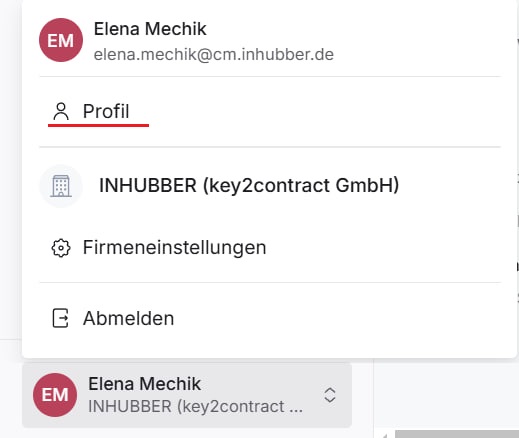
You can find your profile settings by clicking on your avatar icon in the lower left corner of the sidebar. Then click on “Profile.”
In the profile card, you can see your blockchain address and public key. This personal data is added automatically and is required for the digital signing of documents as well as for the encryption and decryption of files.
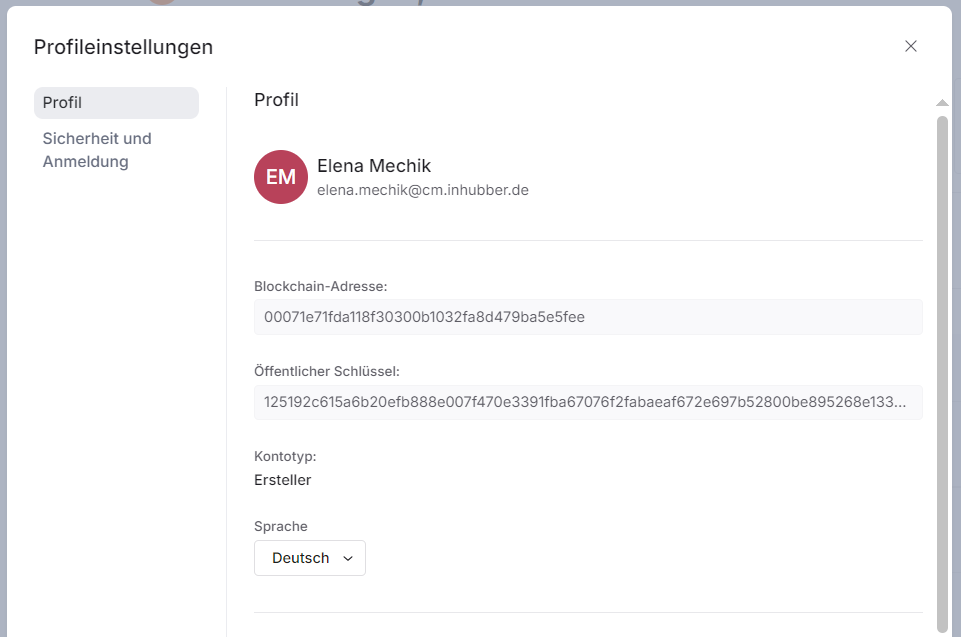
Display language
In your profile, you can change the language of the user interface. Inhubber currently supports three languages:
-
English
-
German
-
French
If your company requires an additional language, please send a request to 👥 support team at support@inhubber.com.
Name change
For documents, the user’s first and last names are security-relevant information. Therefore, they cannot be changed independently. To change your first or last name, please contact the 👥 Inhubber Support team.
Two-factor authentication
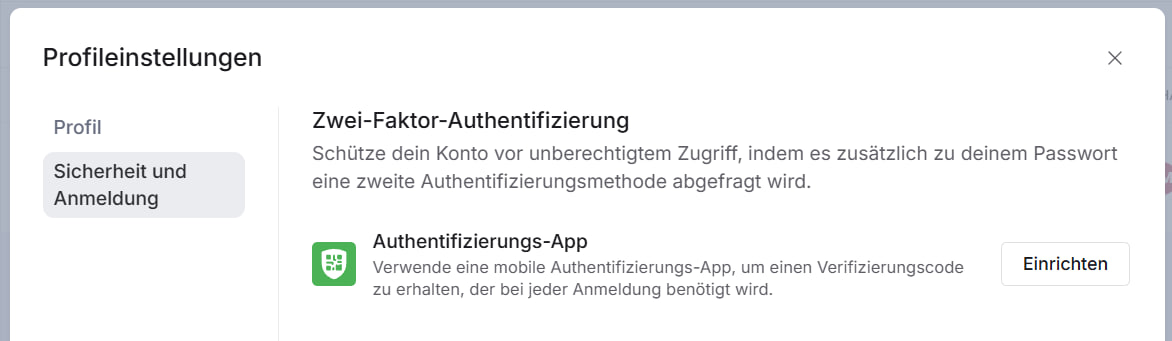
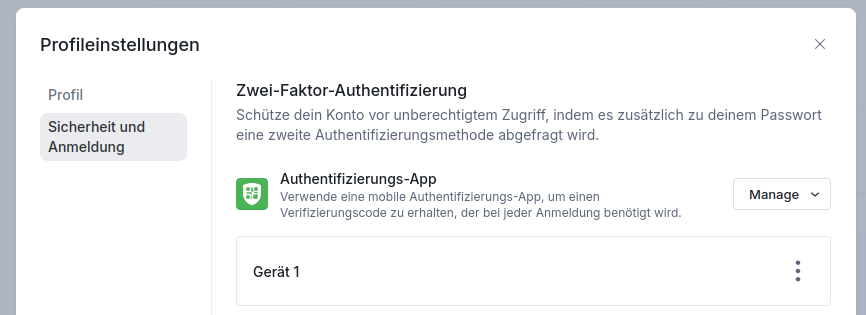
To increase the security of your account, you can enable two-factor authentication (2FA) under “Security and login.” This protects your account from unauthorized access, as a second authentication method is required in addition to your password. We use the common standard “Time-based One-time Password” (TOTP) for this purpose.
If your company requires a company-wide security policy to enforce 2FA for all corporate accounts, please contact the 👥 Inhubber Support team.
You can set up your personal 2FA under “Security and login.” If needed, you can configure multiple authentication apps and devices.
Prerequisites
-
An authentication app is installed on a device of your choice, such as Google Authenticator, Authy, Duo, or another compatible app.
-
Make sure you always have the device with the authentication app with you when using the Inhubber application in the future.
Setup
Follow the instructions in the Inhubber application:
-
Confirm the action with your current user password.
-
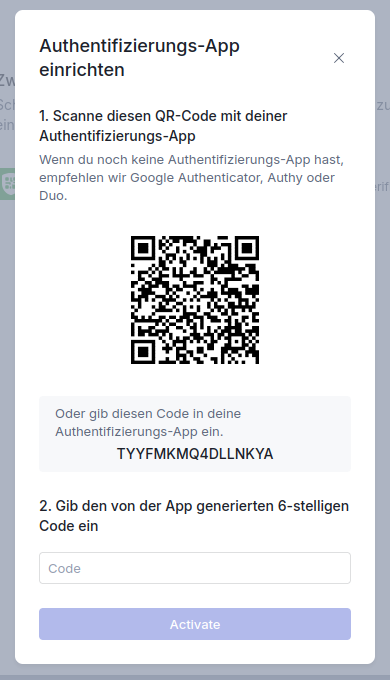
A QR code and a corresponding alphanumeric code will then be displayed, for example:
-
Now open your authentication app and follow its instructions to set up a new 2FA application. If you cannot scan the QR code (for example, if you are setting up 2FA on the same device), you can manually enter the alphanumeric code shown in the Inhubber application into the authentication app.
-
After completing the setup in the authentication app, you will see a current 6-digit verification code. Enter this code in the Inhubber application under step 2.
-
Once the code is entered successfully, the setup is complete.
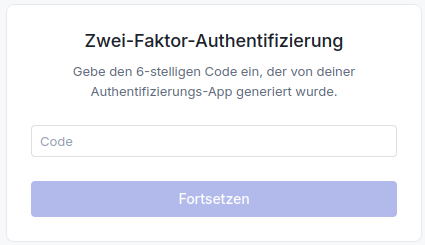
From now on, every time you log in, you will be asked to enter the current 6-digit 2FA code from your authentication app after entering your password.
Lost your 2FA device? Please contact our 👥 Inhubber Support team.
Removal
You can remove any configured 2FA device by selecting “Delete.” Don’t forget to also remove the Inhubber 2FA setup from your authentication app.