Initial invitation
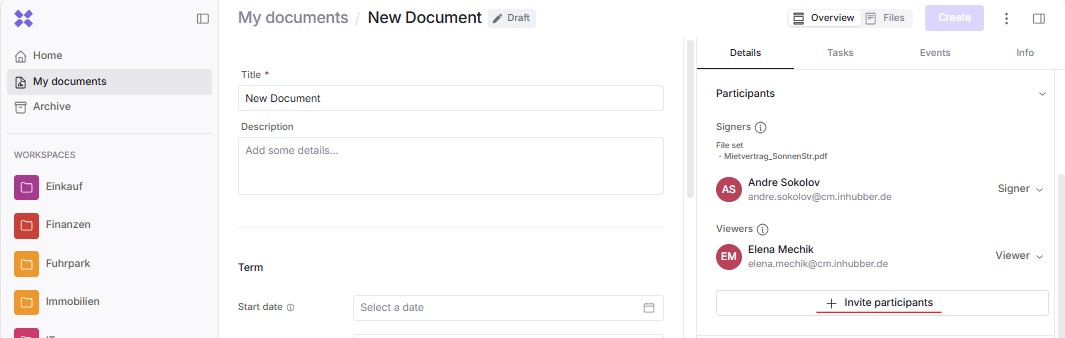
You can invite people to the document from the right-hand sidebar under Details → Participants by clicking Invite participants:
The available invitation options are Viewer and Signer:
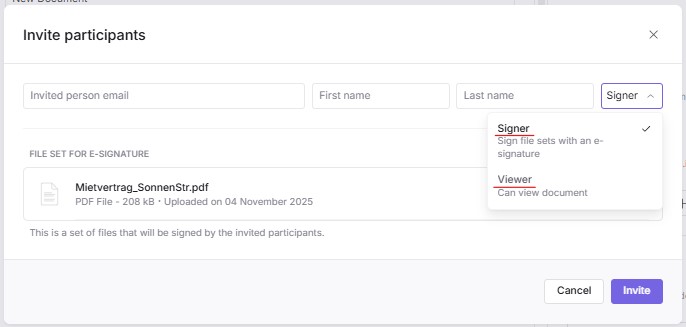
Viewer
-
Permissions: has access to the document and can view the standard fields, files, invited participants, and the process (history). The viewer can also manage their own appointments and participate in tasks they have been invited to
-
Notifications: receives notifications when invited, as well as when the document status changes to Pending , Signed or Archived
Signer
This option is only available if at least one file for eSignature has been added to the document, see section: adding files to a document.
-
Permissions: has the same access rights as a viewer and can additionally sign the files
-
Notifications: Receives notifications when invited, as well as when the document status changes to Pending , Signed , Active , or Expired (the notification for the latter is sent only to employees of your company).
Managing invitations
All email invitations are sent only when the document changes to Pending status. The only exception applies to the following cases tasks.
You can edit the list of participants as follows:
-
add or remove a viewer at any time
-
add a signer as long as the document is not yet in Pending status
-
switch between the two invitation types as long as the person has not yet signed and the document is not in SigPending status
-
Remove a signer as long as they have not yet signed
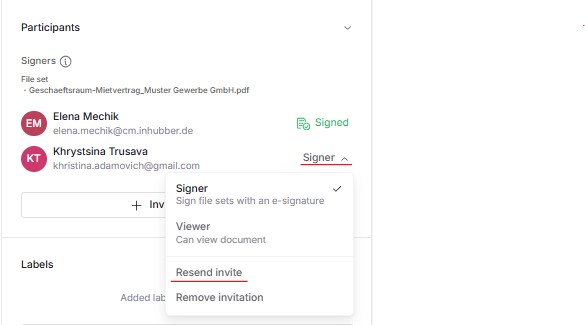
If your signer cannot find the email invitation for signing in their inbox, you can resend the email notification at any time.
These actions can be found in the menu directly next to each participant: