
Export from Inhubber
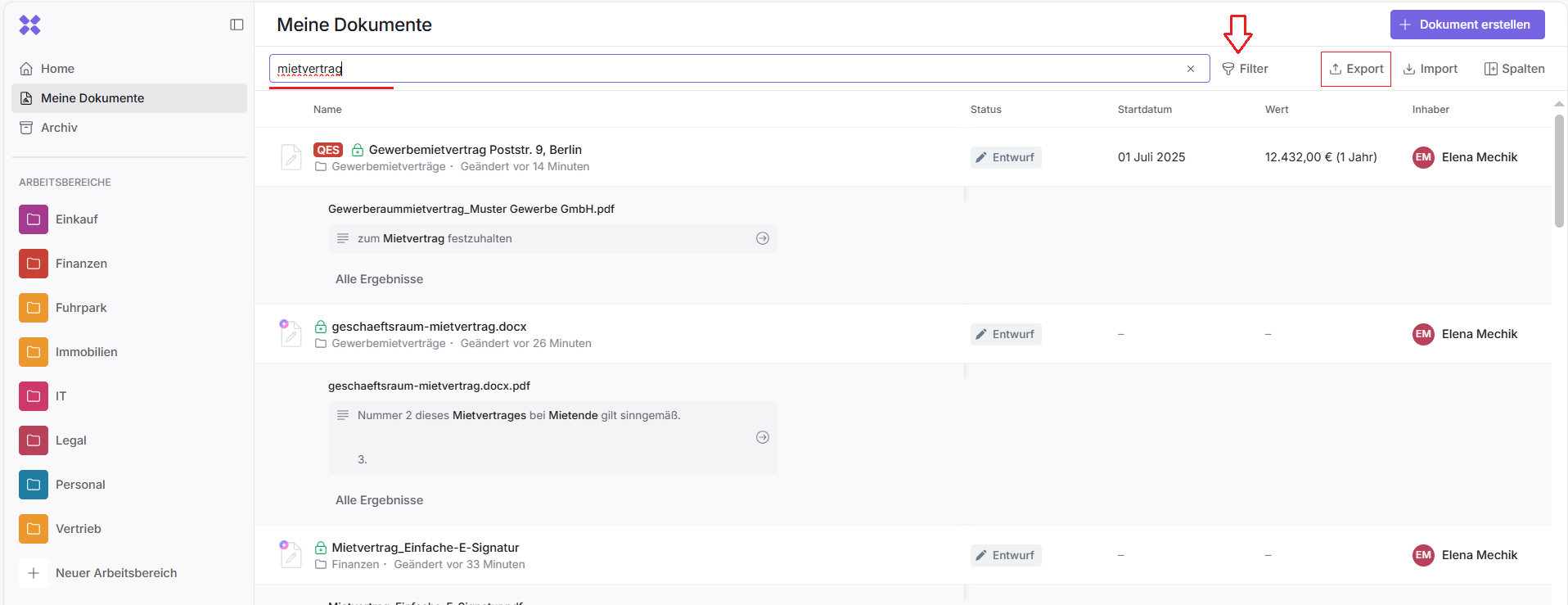
The export function saves master data for individual documents in a CSV file. This format is commonly used for exchanging data in table form. To download a CSV file, follow these steps:
-
Navigate to the location of the documents you want to export: My documents or one of the workspaces.
-
Filter the documents by specific criteria if you only want to export a selection.
-
Click “Export.”
-
Choose the storage location if your browser offers this option. Otherwise, the file will be saved in your computer’s default download folder.
Using the CSV file
To use the exported data in a spreadsheet program such as Microsoft Excel, you can either open the CSV file directly or import it. Most programs include an import assistant to guide you through the process.
Further below, you will find instructions on how to import the file into Microsoft Excel.
Open in Microsoft Excel
-
Double-click the CSV file to open it in Microsoft Excel.
-
Click the column header “A” of the first column to select the entire column and all its contents.
-
Go to the “Data” tab and click “Text to Columns” under the “Data Tools” section.
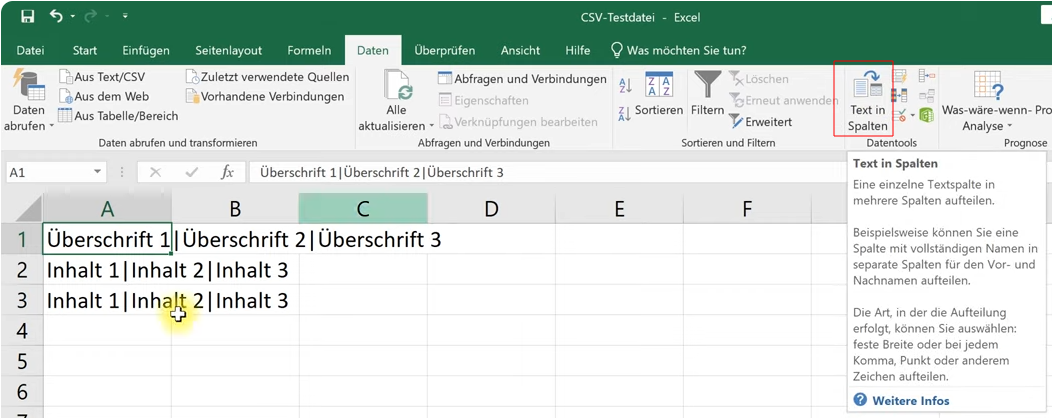
Daten > Datentools > Text in Spalten
The text conversion assistant will open.
-
In the first step, keep the “Delimited” option selected and click “Next.”
-
In the second step, select the “Comma” option and review the preview in the lower section.
-
Click “Finish.”
Import into a Microsoft Excel spreadsheet
-
Open a target Excel file. This can be either an existing or a new Excel file.
-
Go to the “Data” tab and click “From Text” under the “External Data” section.
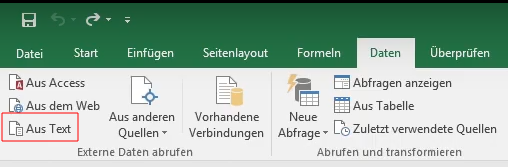
Daten > Externe Daten > Aus Text -
Select the CSV file containing the Inhubber document metadata and confirm with “Open.” The text conversion assistant will appear.
-
In the first step, select “65001: Unicode (UTF-8)” under file origin, activate “My data has headers,” and click “Next.”
-
In the second step, select the “Comma” option and review the preview in the lower section.
-
Click “Finish.”