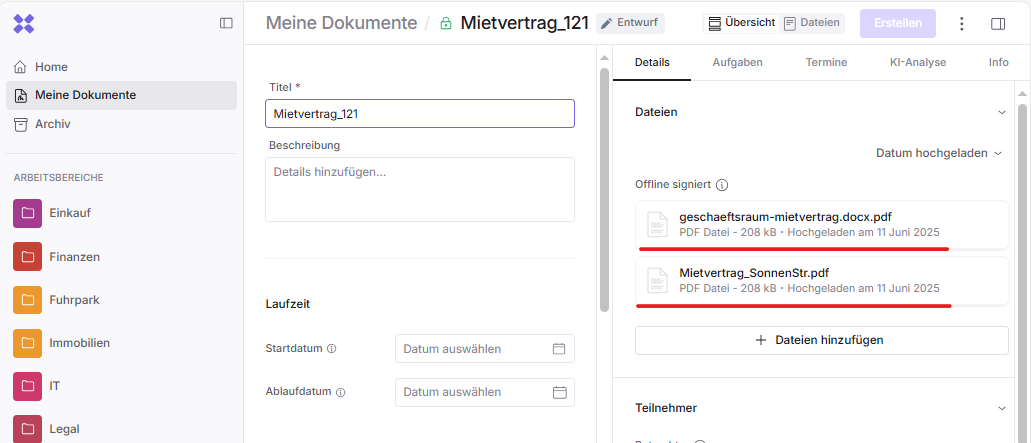
With the basic import, you can upload many files at once. A folder is automatically created by Inhubber as a document with attachments. You can also upload multiple files and group them into a single document.
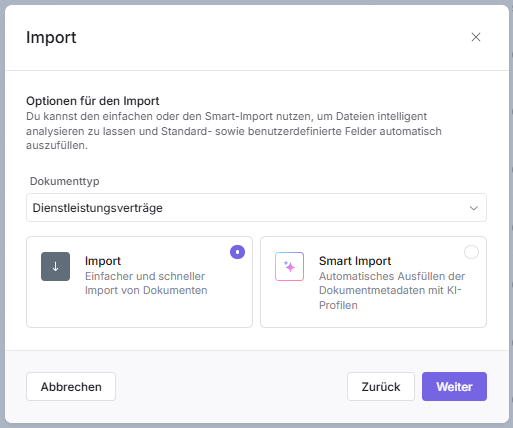
You can upload entire folders via drag and drop or by using the browse function.
To upload a folder via drag and drop, open the desired folder on your computer and drag it with your mouse into the upload area of the Inhubber application.
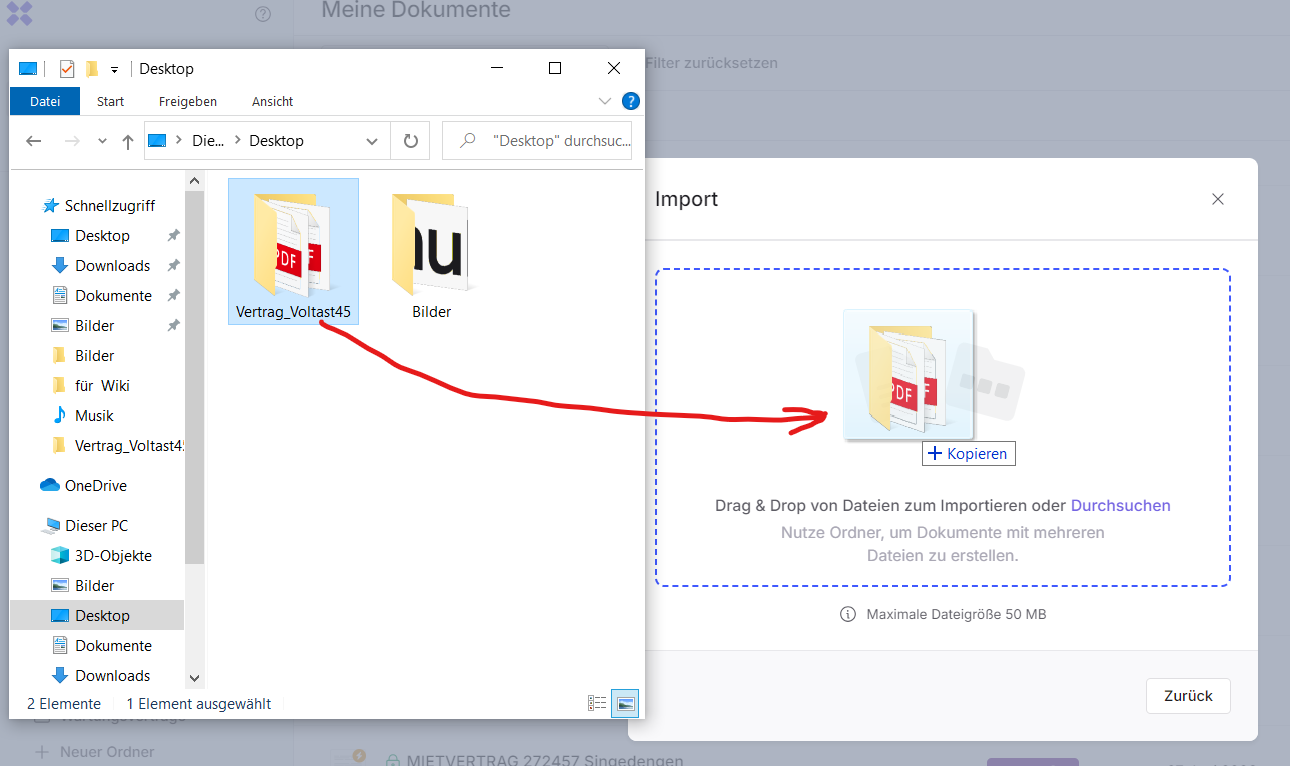
Click “Import” to import the selected folder along with all files it contains into the document.
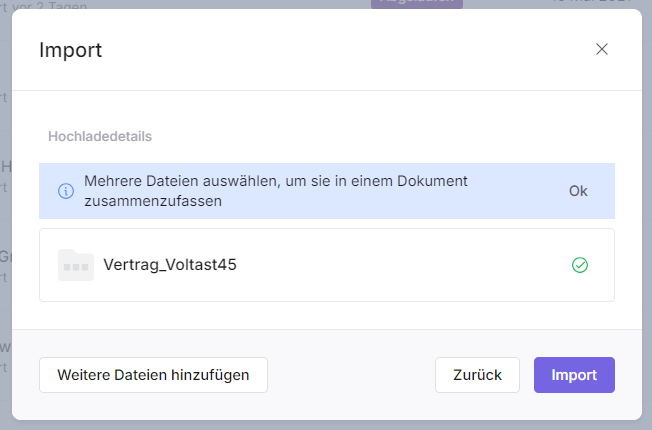
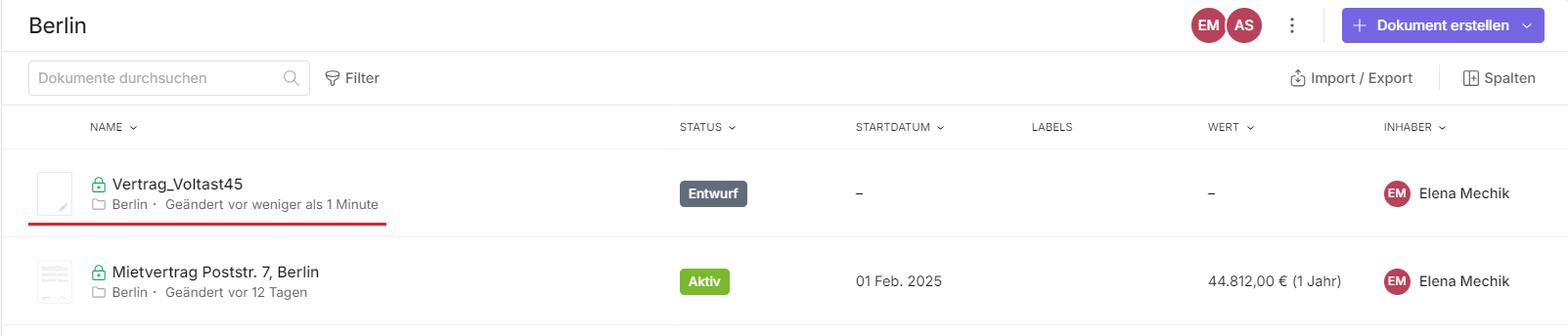
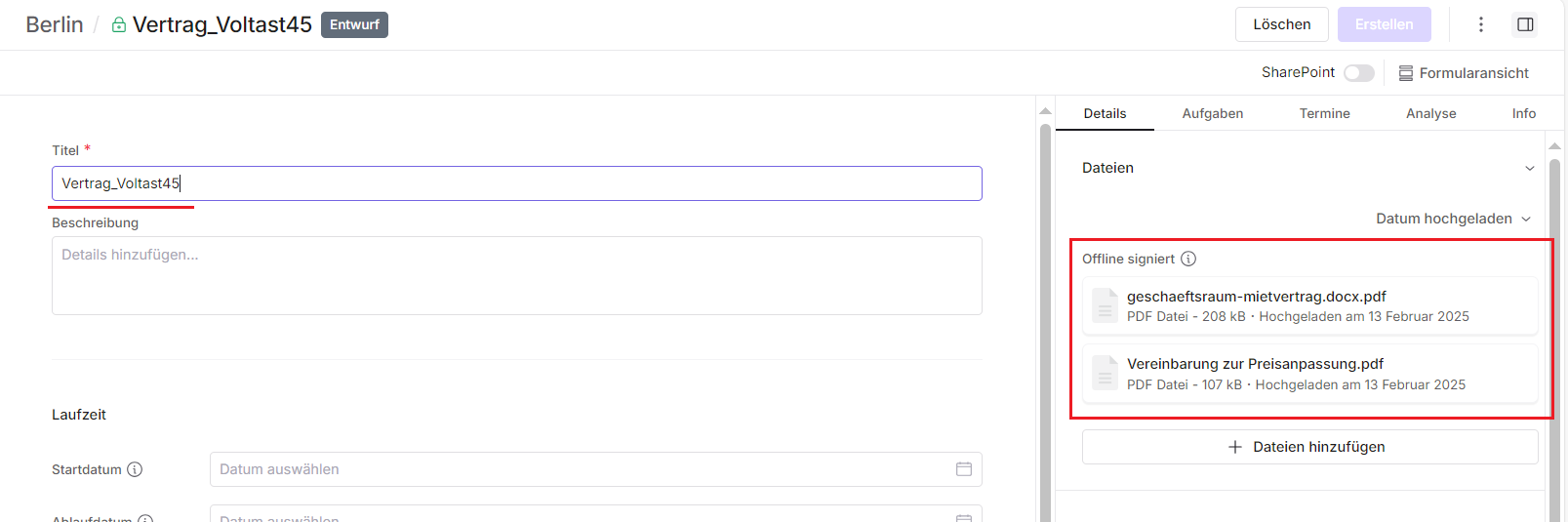
When you open the new document, you will see all files from the uploaded folder in the “Files” section.
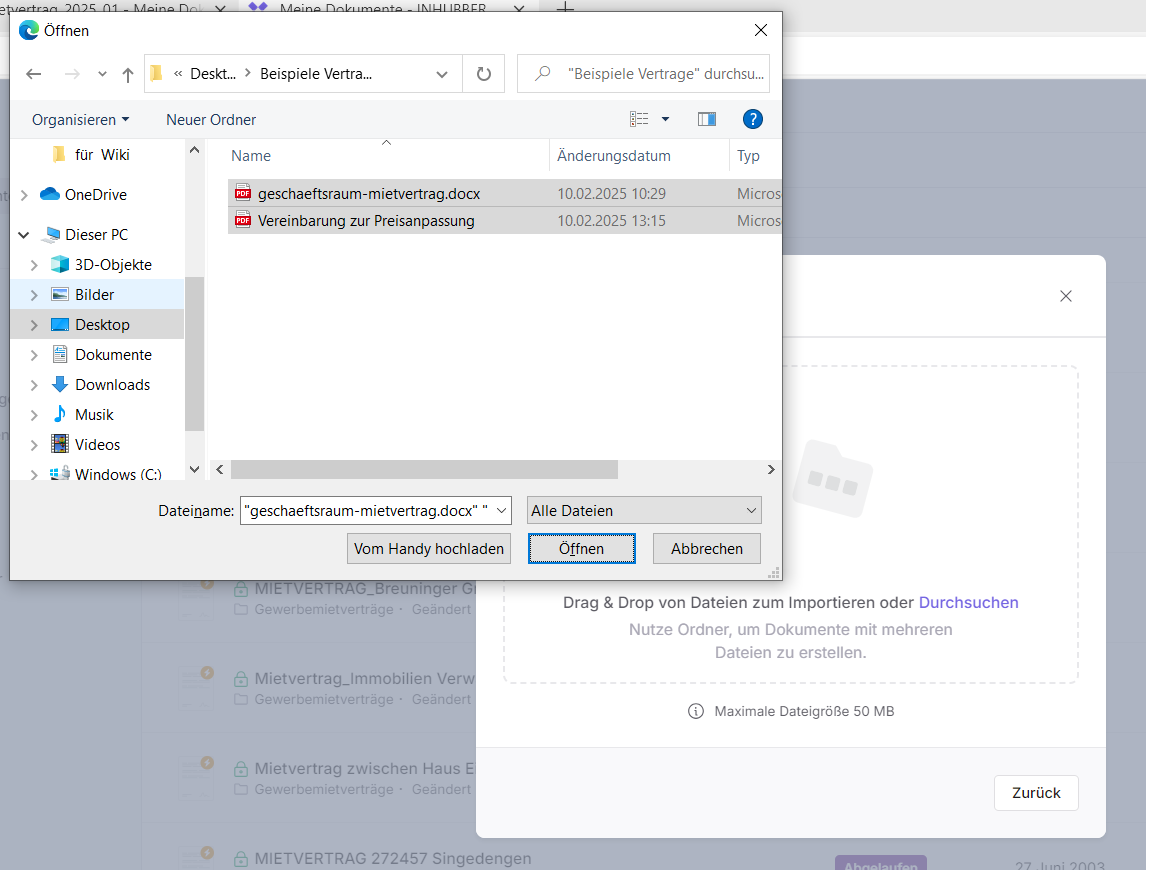
To upload documents using the “Browse” function, click “Browse” and select all the documents you want to upload.
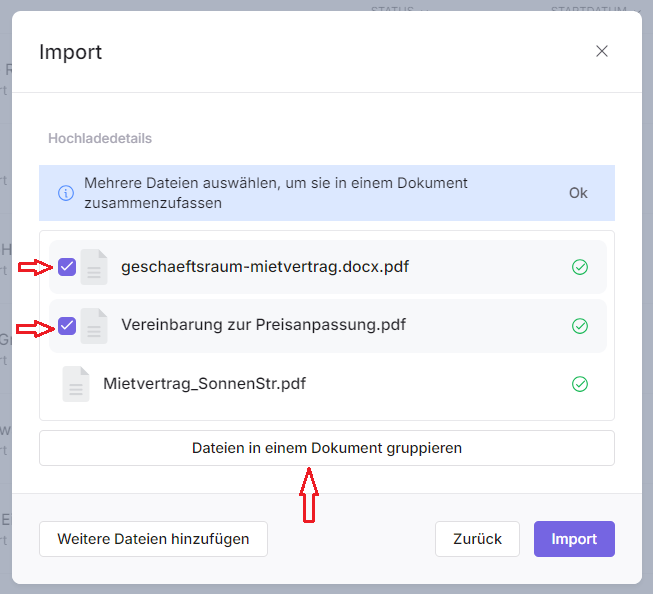
In the “Import” dialog window, select all the documents you want to merge into a single document by checking the boxes, then click “Group files into one document.” All merged files will then be contained in a single document.
In the window that opens, enter the name of the document and click “Group.”

In the import dialog window, you will see a folder containing the files that were merged into a single document. All other files are uploaded as separate documents.
When you click the “Import” button, all files and folders will be uploaded.
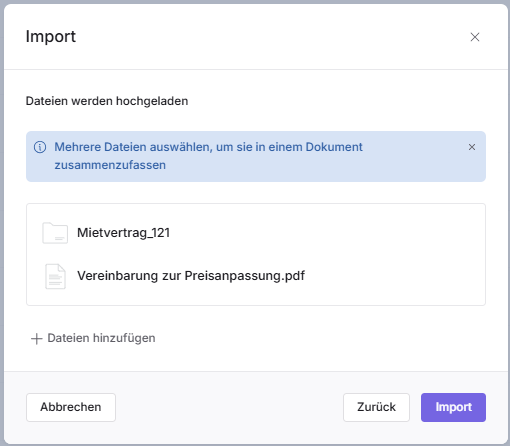
In the next window, you will see the upload status of the documents. Once the document or documents have been fully uploaded, click the “Close” button.


When you click on the document you created from multiple files, you will see these files in the “Files” section.