Creating a task
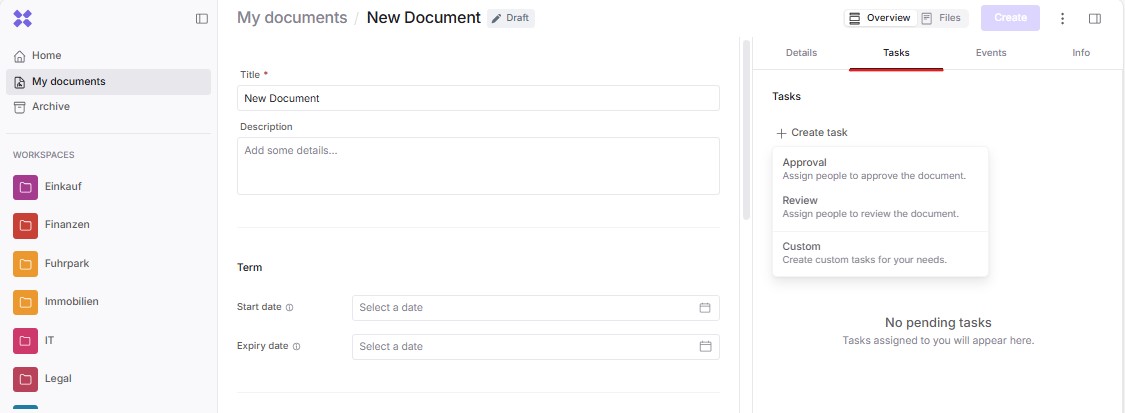
In Inhubber, you can invite employees or external partners to document-related tasks such as approvals, reviews, or other actions:
There you set the task title, describe what needs to be done, and invite the assignees responsible for the task:
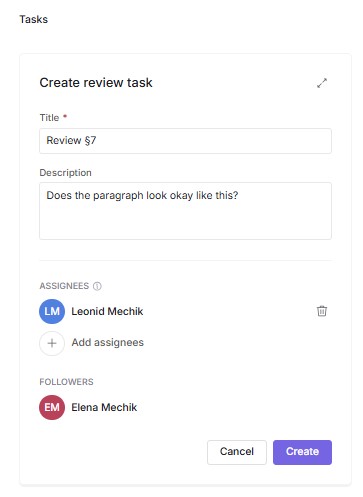
Please note that all assignees must complete the task before it is marked as done. The observer will be notified when the task is completed.
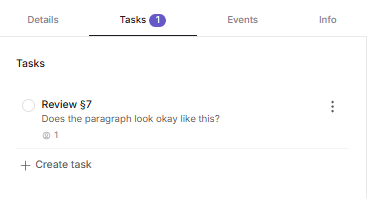
Once the task has been created, you’ll see an overview of all open and completed tasks in the Tasks section:
As soon as a task is assigned to you, you will be notified by email. If you are an observer of a task, you will receive an email once all assignees have completed it.
Completing a task
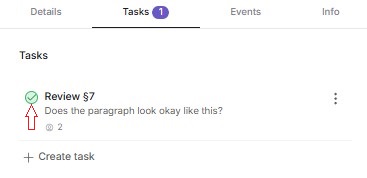
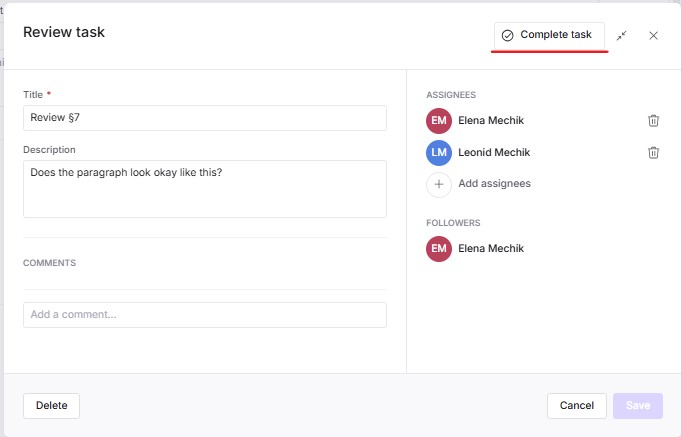
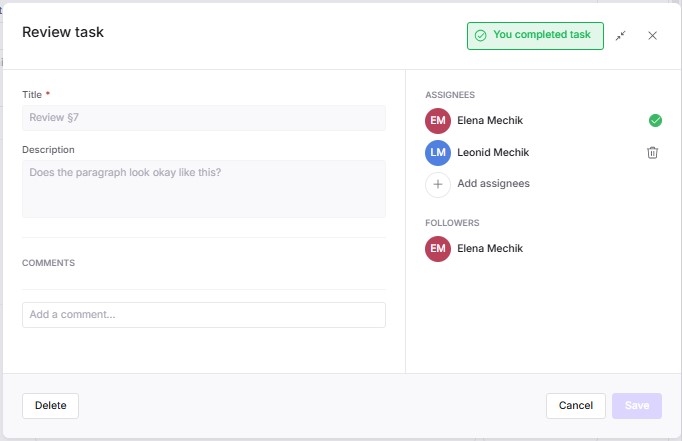
You can complete a task either by clicking the round button on the task card or in the task’s detail view.
There are two places with a round button:
-
either in the general task list:
-
or when you click on a specific task:
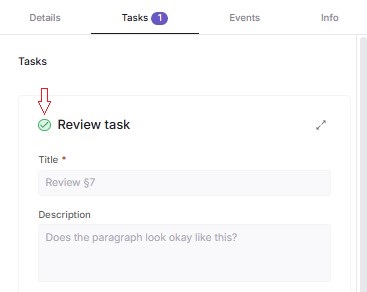
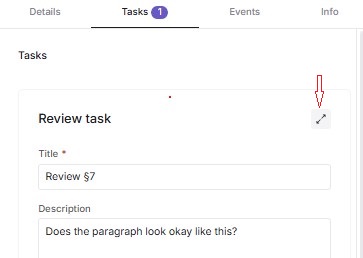
To access a task’s detailed overview, click the task itself and then click the “Expand icon” to the right of the task.
Comments
The commenting feature within a task improves collaboration, traceability, and efficiency in document management. It lets you communicate directly with your team members, provide feedback, propose changes, and exchange file drafts and suggestions. All comments and attachments are stored chronologically, making it easier to follow discussions, file versions, and decisions. This also helps you clarify requirements and expectations directly in the comments. You can also create tasks for yourself to keep reminders and notes that only you can see.
All task assignees are notified by email about new comments.
Attachments
Files can be shared through tasks as follows:
-
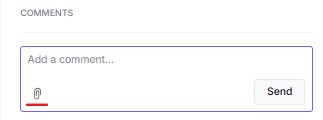
When writing a comment, any authorized user can attach one or more files to the comment using the paperclip icon in the lower-left corner of the comment field:
-
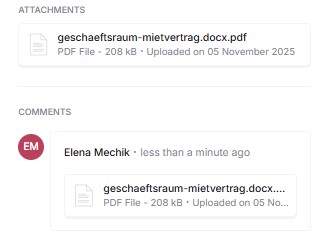
After the comment is sent, the attachments become visible both within the corresponding comment and in a list of all attachments related to that task:
-
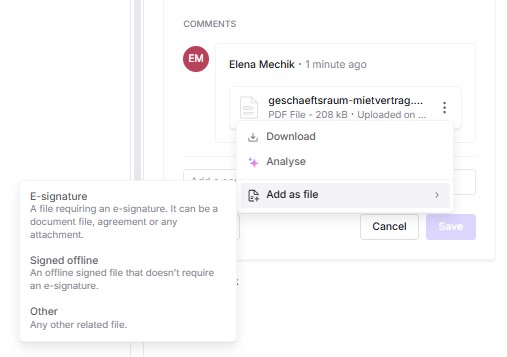
The document owner can add a task attachment as a file to the document’s file list. The same rules apply as when uploading regular files to the document.